9

i'm applying a digital signature to my executable. Using signtool on Windows XP or Windows Vista:

>signtool.exe sign /f "avatar.pfx" MyApp.exe

automatically included the entire certification chain in the digital signature.

Starting with Windows 7 the entire certification chain is no longer included. You must manually include the certificate that:

  • signed your key
  • signed the certificate that signed your key
  • ...
  • ...until there are no more certificates to include

i am told that i have to do this using the /ac switch with the signtool utility.

From MSDN documentation of signtool:

/ac FileName
Specifies a file that contains an additional certificate to add to the signature block.

How do i get the filename of the certificate that signed my certificate?

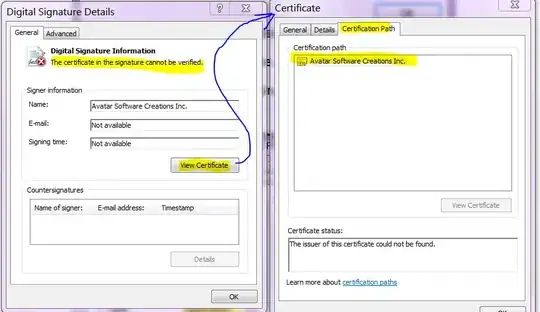
It's more confusing because i don't have any such file. i have my digitally signed executable with no embedded certification chain:

enter image description here


Stackoverflow user davidcl had the same question. In this self-answered answer he says that i need to

do the signing using a PFX file that contains the root certificate, intermediate certificate, developer certificate, and private key.
After creating the appropriate PFX file - which was an odyssey in itself...

But he doesn't give how he created the PFX that contains the entire certification chain.


See also

Community
  • 1
  • 1
Ian Boyd
  • 246,734
  • 253
  • 869
  • 1,219
  • Would it be OK if I gave you a description using OpenSSL? – emboss Jul 11 '11 at 18:28
  • If it's an analogy that might be useful - sure. – Ian Boyd Jul 11 '11 at 18:30
  • To get this right, you do have a .pfx that only contains one certificate? – emboss Jul 11 '11 at 18:34
  • i had a pfx that contained only our certificate, and our private key. a) convert certificate to spc (Software Publishing Certificate): `>cert2spc.exe Avatar.cer Avatar.spc` b) combine spc and Private Key (pvk) into pfx: `>pvk2pfx.exe -pvk Avatar.pvk -spc Avatar.spc -pfx Avatar.pfx` – Ian Boyd Jul 12 '11 at 13:35
  • I'm confused - does this mean this fixed your problem? – emboss Jul 12 '11 at 18:19
  • You were asking if my PFX had only the one certificate - which it does. But it also contains a private key (and i gave the steps i used to create the PFX containing one certificate and one private key). i don't know why you asked if the PFX only has one certificate, and i don't know if having a PVK in there is something that might influence your answer. – Ian Boyd Jul 12 '11 at 18:43
  • Ah, OK, no. Actually the description is exactly for the case where there's just one certificate in your PFX. – emboss Jul 12 '11 at 19:15

2 Answers2

7

Install OpenSSL for Windows. Once accomplished, you have the openssl.exe executable somewhere on your system.

Now proceed as follows.

  1. openssl pkcs12 -in avatar.pfx -out avatar.pem -nodes

(You need to enter the .pfx password here)

  1. openssl pkcs12 -in avatar.pfx -out mycert.pem -nodes -clcerts

(again the PW)

  1. openssl x509 -in mycert.pem -out mycert.cer -outform DER

Now open your Explorer and double-click on the mycert.cer. View the details and somewhere it will talk about an issuer. This is the company that issued your key store, your next goal is to get their intermediate certificates and the final root certificate. If you are lucky, there is an extension called "Authority Information Access" in your certificate that tells you where to get the issuing certificate directly. If you are not so lucky, then you will find a URL for OCSP access in the "Authority Information Access" or a URL for CRLs in the extension "CRL Distribution Points". These should at least give you a vague idea of the vendor's "homepage". In case of doubt, just google around, or ask me again :)

If you are on the vendor's page, you will have to watch out for "CA certificates" or "Intermediate Certificates". You need to download the one whose name is exactly the same as what you found in the "Issuer" field of your own certificate.

Now the funny part: The certificate you just found will again have an "Issuer" field. Lucky you if the issuer is the same company (typically the case for large CAs such as VeriSign), then you will find the corresponding certificate on the same site you are currently on. If not, repeat the previous steps.

Repeat this cumbersome procedure until you're at a point where you have found a certificate whose "Subject" field is exactly the same as its "Issuer" field. You're done then. This is a so-called "self-signed root certificate".

Most of these certificates will come in "DER"/"ASN.1"/"X.509" format - if you have the choice, download "PEM" format, otherwise you will first need to convert the certificates into "PEM" format by

openssl x509 -in cert.der -inform DER -out cert.pem

Once you have all the missing certificates in PEM format

  1. open the initial file created in step 1, avatar.pem, in a text editor.

  2. open the missing certificate PEM files in separate windows

  3. copy the missing certificates (the entire file, including the "----- BEGIN CERTIFICATE -----" and "----- END CERTIFICATE -----") and append them to avatar.pem

  4. save the result

  5. issue

openssl pkcs12 -export -in avatar.pem -out newavatar.pfx -name ""

You will have to enter a new password that is to be used with the new file.
Giacomo1968
  • 25,759
  • 11
  • 71
  • 103
emboss
  • 38,880
  • 7
  • 101
  • 108
  • 2
    In the end i had a much easier way to get a `.cer` file of the certificate that signed my certificate. i got ahold of a version of my app that i signed on Windows Vista, viewed the app's digital signature there, and was able to look at, and import, the cert into my certificate store. Then i was able to export it to a `.cer` file and delete it from the store. But i assume this answer works when i don't have access to a version of the app signed on XP or Vista. – Ian Boyd Jul 12 '11 at 18:45
  • 1
    @Ian: I see, the Windows certificate store completes the certificate chain for you. Nice one, didn't think of that. I had to do the exact same procedure I described on a Linux system once, there was no such help :) – emboss Jul 12 '11 at 19:17
  • Well i didn't *have* the intermediate certificate. But by diging up an old signed executable, i was able to "fish out" the certificate and save it to the hard drive. Once i had the certificate i was able to use the `/ac` switch of `signtool` to include the signing certificate in the signature. – Ian Boyd Jul 13 '11 at 02:22
1

Minor addendum to Ian's comment above "In the end I had a much easier way to get a .cer...". These days when you export your code signing pfx from the Thawte webpage, you can specify that you want the entire chain included. Hence you can import the pfx with certmgr.msc and then export the single Thawte intermediate certificate as a codesign.cer file. Then use that with the signtool /ac switch. No need to have an old signed app. Be sure to delete your temp certificate in the store, so your test of the newly signed app is valid. --William Croft

wjcroft
  • 11
  • 1