6

In the picture below there are some regions which are very bright (i.e. more white). Some bright regions are wide and some are narrow or thin. The red box covers one such wide bright spot, and blue box covers one thin bright spot. Thin bright spots are called edges and wide bright spots are called hot-spots.

I want to remove all the hot-spots from the image (i.e. make them black), but no edge should be removed.

My question is how to write Python code using OpenCV to remove all hot-spots but no edge?

enter image description here

S. M.
  • 125
  • 17

2 Answers2

4

Based on this answer's algorithm I have written my code which is working as intended.

Here's a breakdown of the coding steps:

  1. Otsu's thresholding is applied to the grayscale image1 using cv2.threshold() with the cv2.THRESH_BINARY + cv2.THRESH_OTSU flag to obtain image2.

  2. Erosion is performed on image2 using cv2.erode() with a square kernel to obtain image3.

  3. The threshold distance K is defined.

  4. You then compare to 0 for pixels where image2 is larger than 0. So you can combine the result of the two full-image comparisons with the logical and(&) operator, and use the result to index into the output image.

  5. The final image is displayed using cv2.imshow().

Note that a square region with side 2*K is used instead of a circular mask in this implementation. The choice between a circular or square area can be adjusted by modifying the mask variable in the code. Feel free to adjust the threshold distance K and experiment with different shapes and sizes of the neighborhood mask to suit your specific requirements.

import cv2
import numpy as np

Load the image

image1 = cv2.imread('orange.jpg', cv2.IMREAD_GRAYSCALE)

Otsu's thresholding

_, image2 = cv2.threshold(image1, 0, 255, cv2.THRESH_BINARY + cv2.THRESH_OTSU)

Erosion

kernel = np.ones((5, 5), np.uint8) image3 = cv2.erode(image2, kernel, iterations=1)

Define the threshold distance K

K = 2

Iterate over image1 pixels and generate the final image

final_image = np.copy(image1) final_image[(cv2.blur(image3,[2K+1, 2K+1]) > 0) & (image2 > 0)] = 0

Display the original and final image

cv2.imshow('Original image', image1) cv2.imshow('Final Image', final_image) cv2.waitKey(0) cv2.destroyAllWindows()

Output:
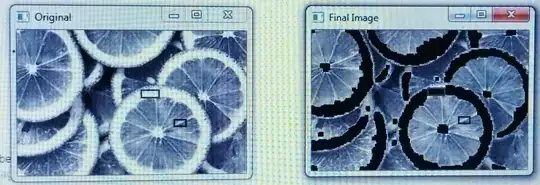
enter image description here

S. M.
  • 125
  • 17
2

Can you try the following approach using OpenCV

The logic behind this is:

  1. Convert the image to grayscale.

  2. Apply a Gaussian blur to the image to smooth out the edges.

  3. Threshold the image to create a binary image where the hot-spots are white and the rest of the image is black.

  4. Dilate the binary image to fill in any small holes in the hot-spots.

  5. Find the contours in the dilated image.

  6. Iterate over the contours and remove any that are not large enough.

  7. Fill in all of the remaining contours with black.

      import cv2
    

    def remove_hotspots(image):

    Convert the image to grayscale

      gray = cv2.cvtColor(image, cv2.COLOR_BGR2GRAY)


    Apply a Gaussian blur to the image to smooth out the edges

    blur = cv2.GaussianBlur(gray, (5, 5), 0)

    Threshold the image to create a binary image where the hot-spots are white and the rest of the image is black

    threshold = cv2.threshold(blur, 128, 255, cv2.THRESH_BINARY)[1]

    Dilate the binary image to fill in any small holes in the hot-spots

    dilated = cv2.dilate(threshold, None, iterations=2)

    Find the contours in the dilated image

    contours, hierarchy = cv2.findContours(dilated, cv2.RETR_TREE, cv2.CHAIN_APPROX_SIMPLE)

    Iterate over the contours and remove any that are not large enough

    for i in range(len(contours)): if cv2.contourArea(contours[i]) < 100: continue

      # Fill in the contour with black
      cv2.drawContours(image, contours, i, 0, -1)


    return image

    if name == "main":

    Load the image

    image = cv2.imread("image.jpg")

    Remove the hot-spots

    new_image = remove_hotspots(image)

    Display the original and new images

    cv2.imshow("Original", image) cv2.imshow("New", new_image) cv2.waitKey(0) cv2.destroyAllWindows()

Multivac
  • 3,199
  • 2
  • 10
  • 26